
BSTViewer v3.0 Installation Tutorial
BSTMatrix v2.3: R Environment Setup, Installation and User Guide
2022-06-08
New Release | BMKManu DG1000 Single-Cell RNA Sequencing Arrives
2022-06-20
Procedure
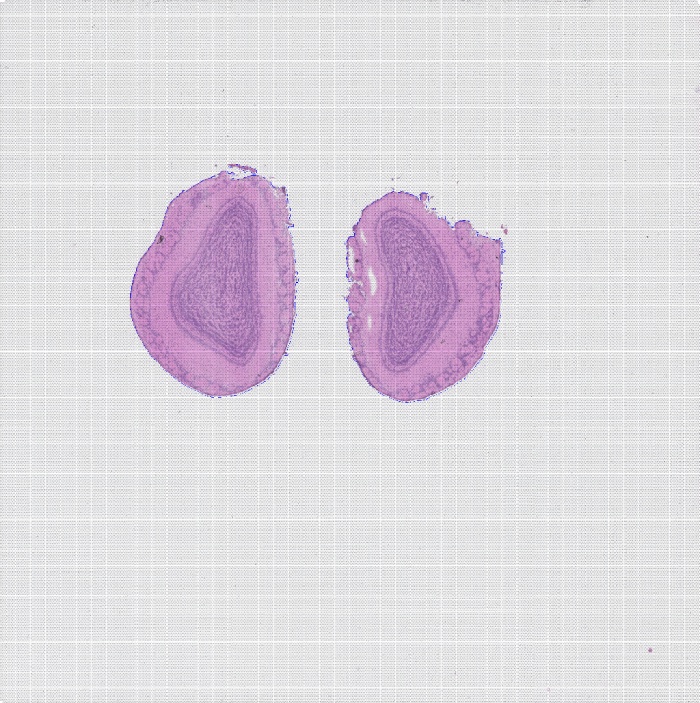
1) Place the BSTViewer_project folder data downloaded from the official website (or the BSTViewer_project folder produced by running BSTMatrix) into a folder with an English-only name; [this includes the resolution matrix files at each level, along with HE staining images from BMChiper or downloaded from the official website] You may also create a new outdir folder here as the file output path;
2) Run BSTViewer in the directory “BSTViewer V3.0 Official Release-WIN-64\BSTViewer V3.0 Official Release\bin”, click “Create Project” to create a task, and select the outdir folder from step 1);
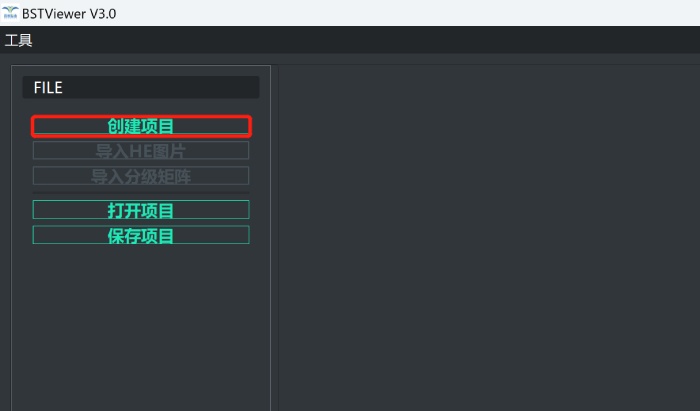
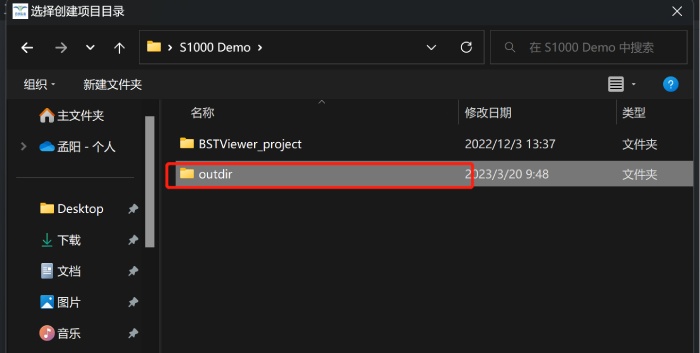
Create output directory
3) Import the HE image and matrix files. The imported HE image can be moved with the left mouse button and zoomed with the scroll wheel;
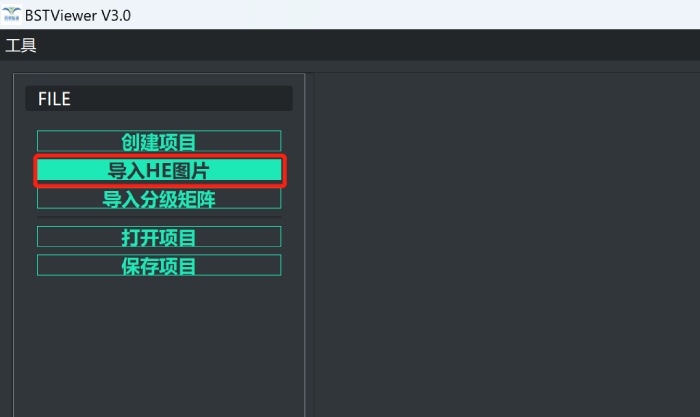
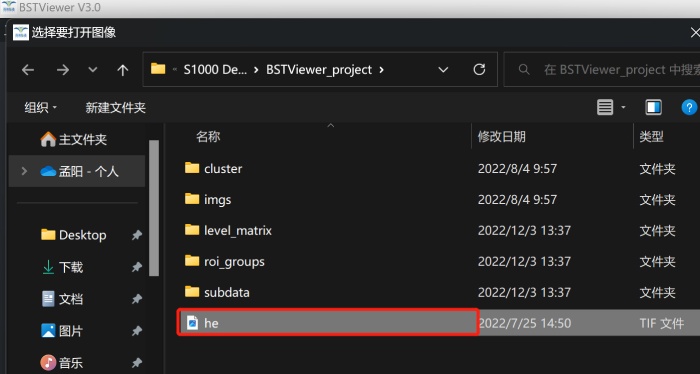
Import HE image
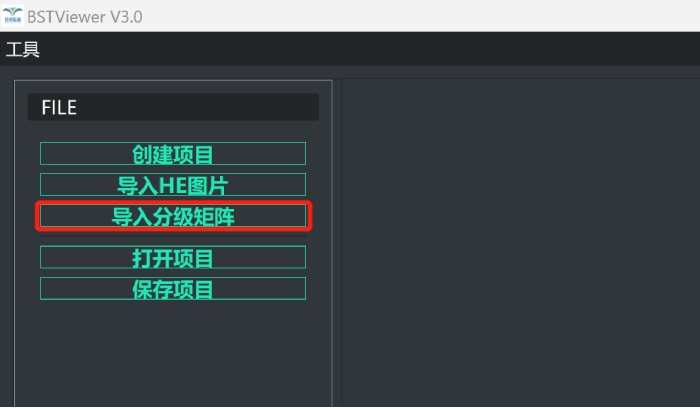
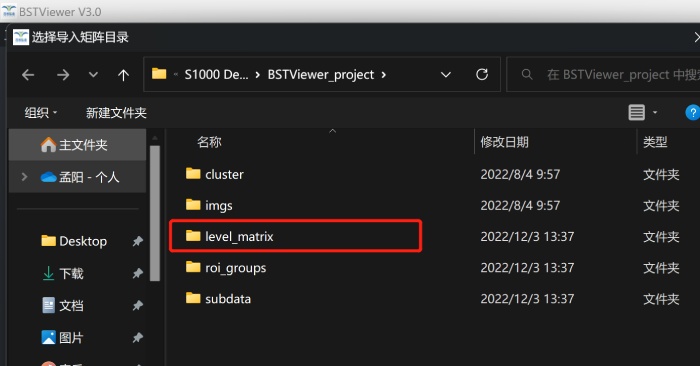
Import matrix
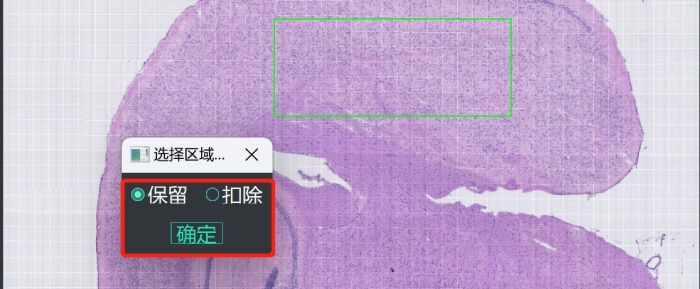
4) Create an ROI. Click the “ROI” button; here you can choose global clustering or regional clustering. cont and conts-all represent clustering globally and clustering globally with blank areas removed, respectively. For regional clustering, two modes are currently provided: “lasso selection” and “rectangular selection.” After selecting a suitable region, click “Finish This Selection,” choose “Save or Exclude,” then click “Save ROI Group” and give it a name;
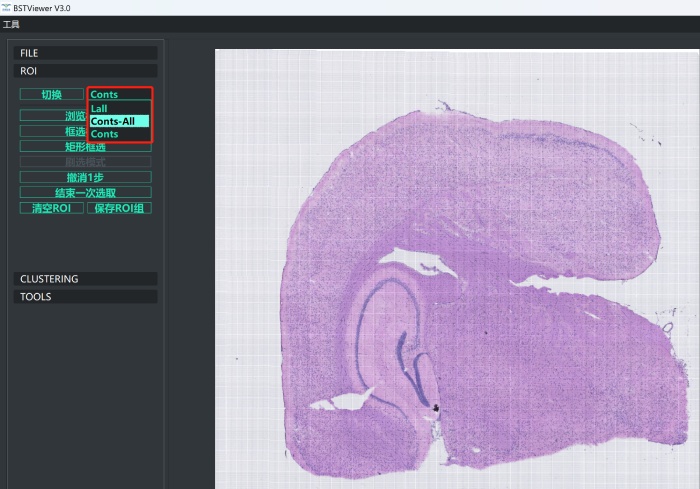
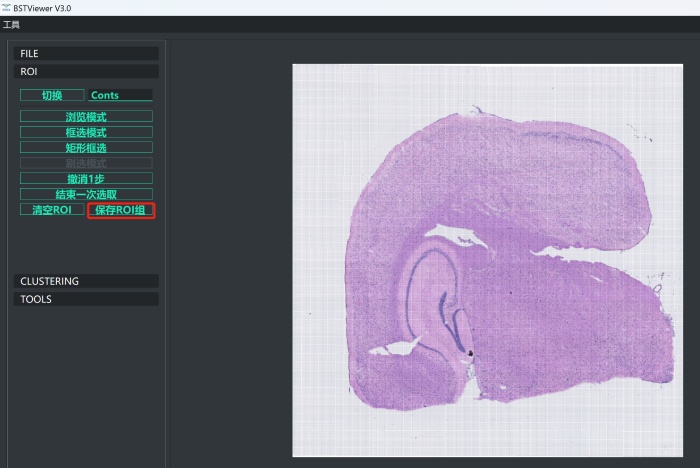
5) Click “Clustering,” select the resolution you are interested in and appropriate parameters, then click “Start Clustering”;
LEVEL selection: different resolution levels
Minimum gene count: when the number of genes in a single spot is below this value, the spot is automatically filtered out;
Minimum spot group size: the number of spots in which a gene must be expressed; genes below this number are filtered out;
RESOLUTION: clustering abundance value. The higher the value, the more cluster types are produced; adjusting around 0.5 is recommended.
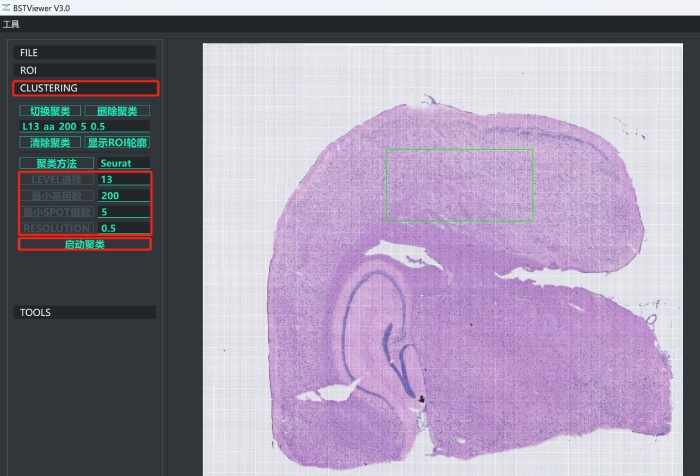
Regional selection
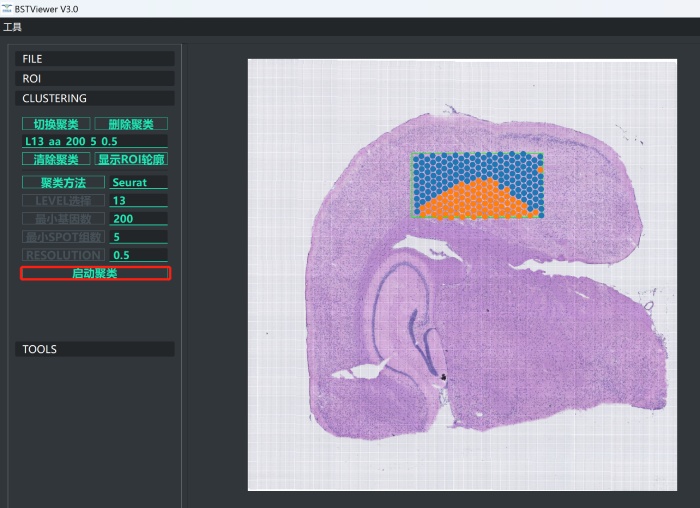
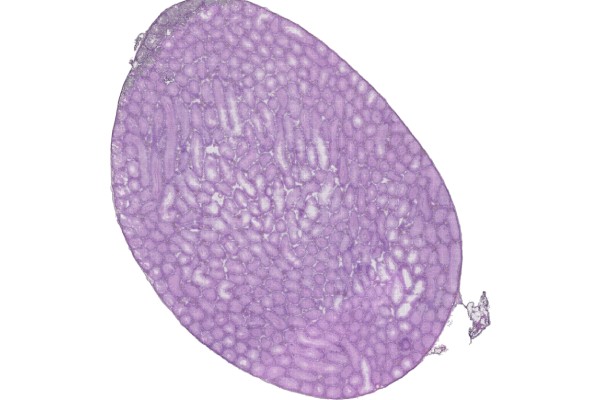
Regional clustering results
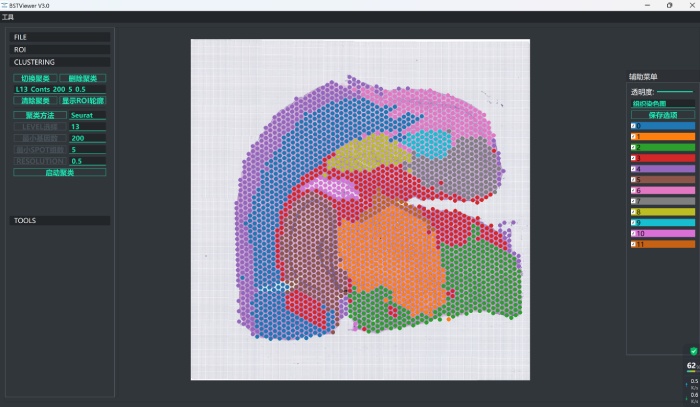
Global clustering results
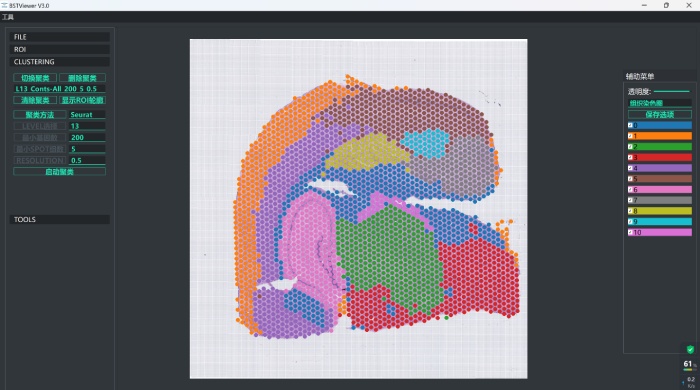
Global clustering results with blank areas excluded
6) Finally, the clustering results of the selected region of interest are obtained. Click “ROI” to switch to “Browse Mode”
, where you can zoom with the mouse wheel to inspect the results;
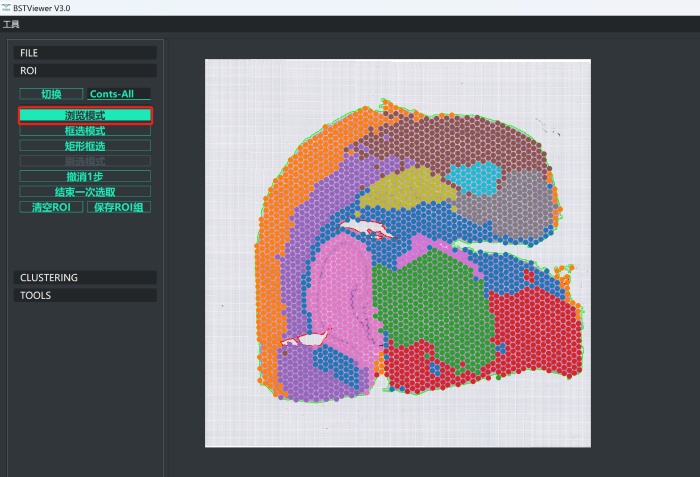
7) Clustering images can be saved in the TOOLS panel. Clicking the image mode lets you save “HE only” or “HE&Cluster” separately.
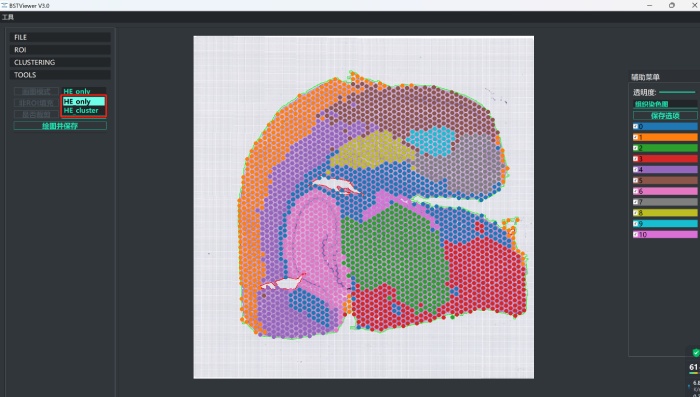
Result paths
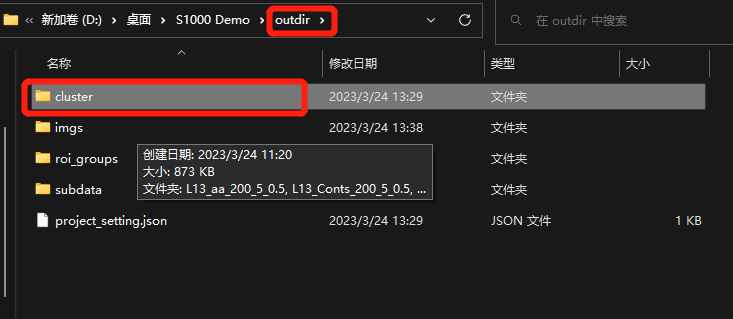
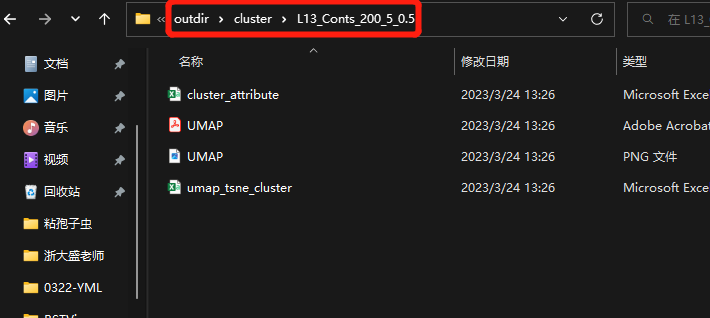
1) Cluster clustering results are saved in “cluster” inside the “outdir folder.” This includes cluster images, barcode information, UMAP, and tSNE clustering results.
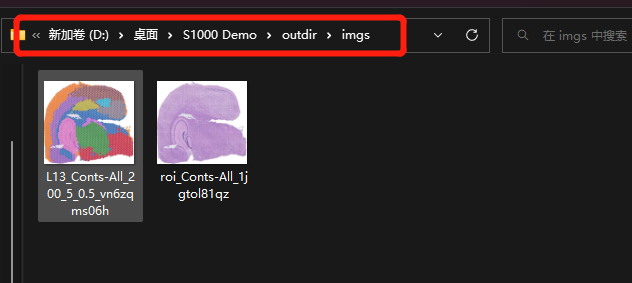
2) HE images and cluster images saved during clustering are stored in the “imgs” folder.
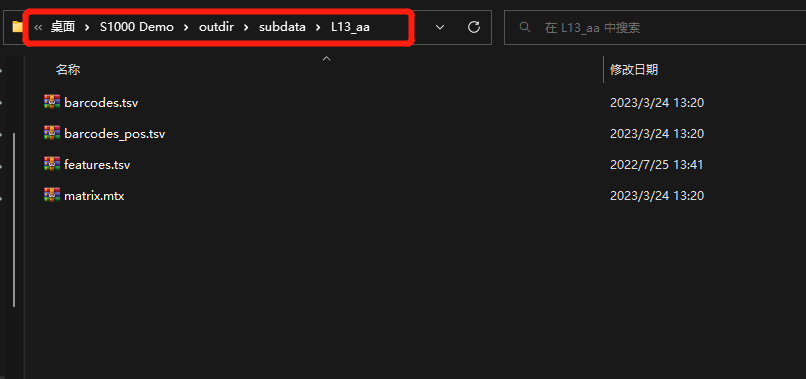
3) Matrix files of the selected regional clustering are stored in the “subdata” folder.
Related posts

Warning: Trying to access array offset on value of type bool in /www/wwwroot/10.3.128.39/wp-content/themes/betheme/functions/theme-functions.php on line 1467